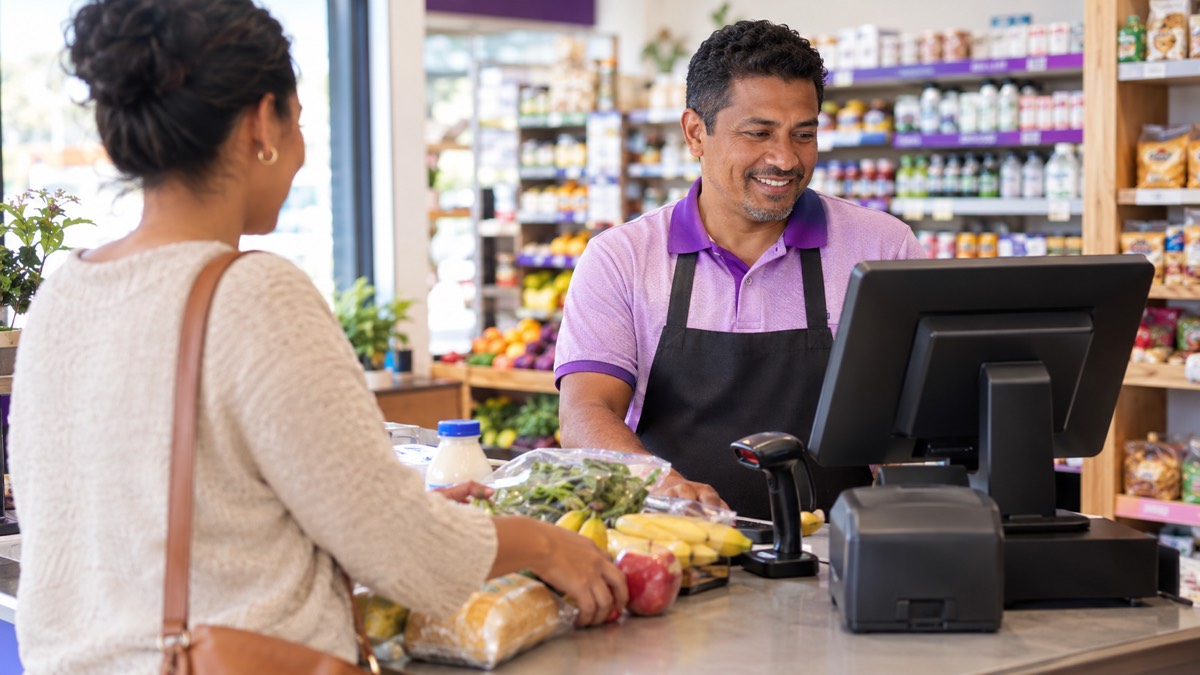
POS software is the program that runs your checkout. It records each sale, takes payment, prints the receipt and updates your stock automatically. If you still use a notebook, a calculator or a basic cash register, you have probably lost track of stock, struggled to balance the till at night, or guessed which products really make money. This guide explains what POS software is, how it works step by step, which features matter and how to choose the right one for your shop.
Key takeaways
- It records sales, accepts payments and updates stock in one step, so your numbers are always current.
- A POS system is the software plus the hardware: computer or tablet, barcode scanner, receipt printer and cash drawer.
- A good one also handles inventory, purchasing, customers and reports, not only the checkout.
- Cloud POS runs in a web browser, needs no installation and lets you check your shop from anywhere.
- Choose software that fits how you sell: by box and piece, with expiry dates, on credit or across several branches.
What is POS software?
POS (point of sale) software is a program that records sales at the place where customers pay. It adds up the items, applies prices, taxes and discounts, accepts payment, prints or emails a receipt, and automatically updates stock levels and reports. Modern systems also manage purchases, customers, suppliers and multiple stores.
POS software vs. POS system
People often use the two terms for the same thing, but there is a difference. POS software is the program. A POS system is the complete setup: the software plus the hardware your cashier touches, such as a computer, a barcode scanner, a receipt printer and a cash drawer. You can change hardware without changing software, and many cloud POS programs work with ordinary computers and standard USB scanners and printers.
POS software vs. a cash register
A traditional cash register adds up prices and stores cash. That is about all. A POS system does much more, because every sale is saved with details you can use later.
| Task | Cash register | POS software |
|---|---|---|
| Add up a sale | Yes, prices typed by hand | Yes, prices come from the product list or a barcode |
| Update stock after a sale | No | Automatically |
| Know your best-selling products | No | Sales reports by product, category or brand |
| Check the cash at closing | Manual count, total only | Expected cash vs. counted cash, per shift |
| Track customer credit | Separate notebook | Linked to each sale and payment |
| Manage several shops | No | One system for all branches |
How does POS software work? A sale step by step
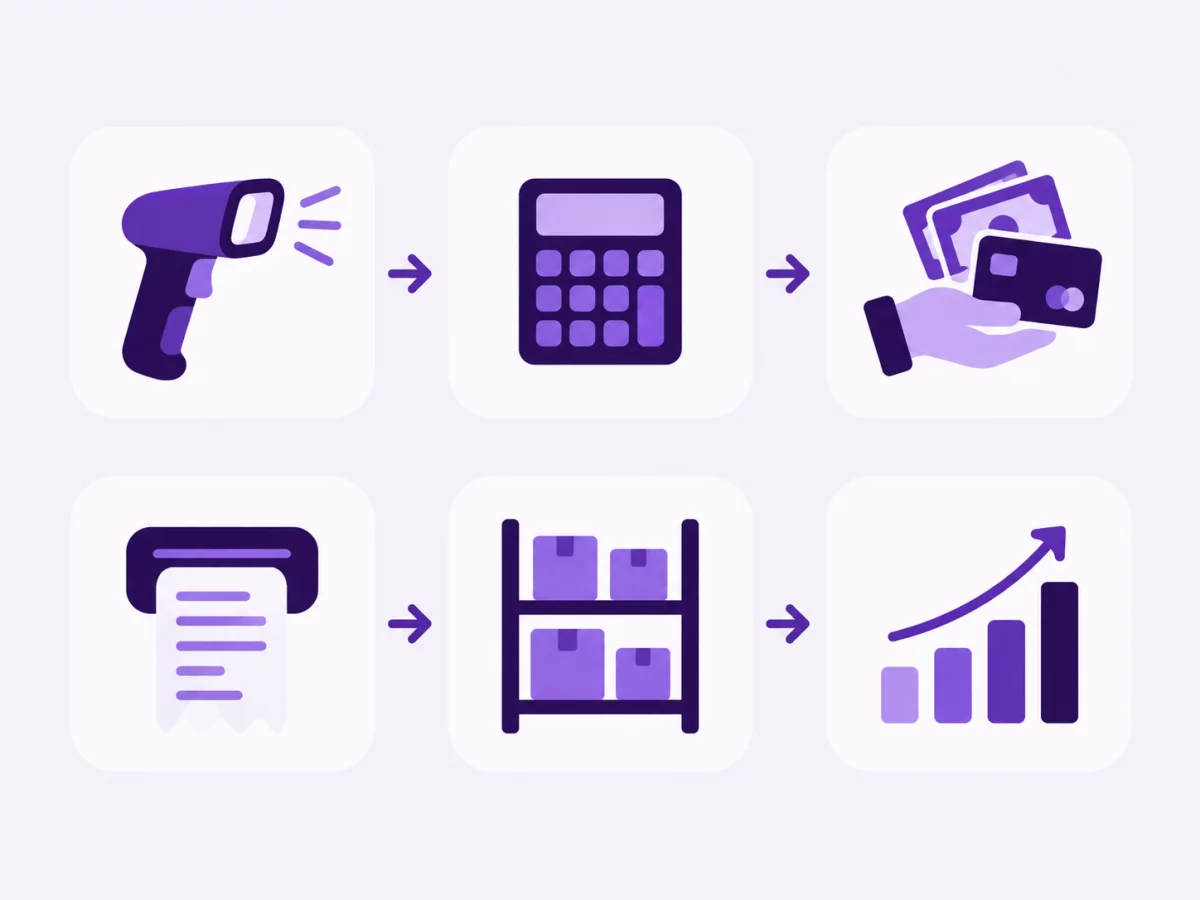
Every sale follows the same path. Here is what happens between the moment a customer puts items on the counter and the moment they leave:
- Add the items. The cashier scans each barcode or searches the product by name. The software finds the price instantly.
- Calculate the total. The software applies the right unit (piece, pack or box), any active discount and the tax rate, then shows the total.
- Take payment. The cashier records how the customer pays: cash, bank transfer, cheque or another method. Card payments usually go through a separate terminal supplied by a bank or payment provider. If the customer pays later, the amount is saved as credit on their account.
- Print or send the receipt. The software prints a receipt or creates a PDF invoice that can be emailed.
- Update stock. The quantities sold are deducted from stock straight away, in the right outlet.
- Save the sale for reports. The sale feeds your sales, profit and cash reports with no extra work.
Worked example: a hardware store selling by the box and by the piece
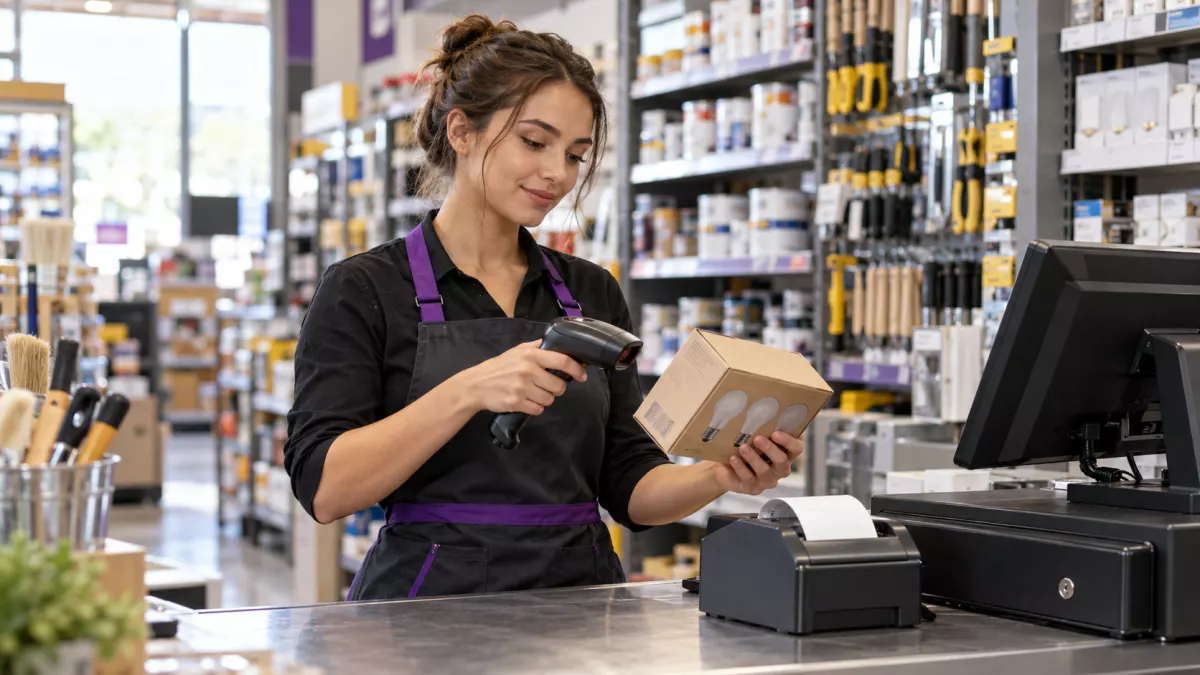
A hardware shop sells light bulbs individually and in boxes of 12. At the checkout, one product has two units with their own prices and barcodes: Piece at $2.50 and Box (12 pieces) at $27.00. The shop has 10 boxes in stock, which the software counts as 120 pieces.
A customer buys 1 box and 5 single bulbs:
| Item | Quantity | Price | Line total | Pieces deducted |
|---|---|---|---|---|
| Light bulb, Box (12) | 1 | $27.00 | $27.00 | 12 |
| Light bulb, Piece | 5 | $2.50 | $12.50 | 5 |
| Total | $39.50 | 17 |
After the sale, stock shows 103 pieces, or 8 full boxes and 7 loose bulbs. Without a POS, someone would have to remember to subtract 17 pieces by hand, and the box price would be easy to get wrong.
What happens at the end of the day
At closing, the cashier closes the register. The software calculates how much cash should be in the drawer, and the cashier enters what is actually there:
| Line | Amount |
|---|---|
| Opening cash (float) | $50.00 |
| + Cash sales | $840.00 |
| − Cash refunds | $20.00 |
| = Expected cash | $870.00 |
| Counted cash | $865.00 |
| Difference | −$5.00 |
A small difference can be a counting or change error. A difference that repeats on the same shift is a signal to look closer. This daily check is one of the simplest ways a POS protects your cash.
Key features of POS software
The checkout is only the start. These are the features that make the biggest difference for retail and wholesale businesses.
Sales and checkout
- Barcode scanning and fast product search
- Several payment methods and split payments
- Receipts, PDF invoices and quotations that convert into sales
- Returns and refunds linked to the original sale
- Discount rules that apply time-limited promotions automatically
Inventory management
Inventory management means knowing what you have, where it is and when to reorder. The software deducts every sale from stock and records every delivery, adjustment and transfer. Look for:
- Product variants, such as sizes and colours, so each one has its own stock
- Multi-unit pricing, such as box and piece, as in the example above
- Low-stock alerts, so you reorder before you run out
- Batch and expiry tracking, essential for pharmacies and food. See our guide on reducing expired stock losses with FEFO.
Purchasing and suppliers
Purchase orders, deliveries, supplier payments and returns to suppliers all update stock and costs. You see what you owe each supplier and what you paid for every product.
Customers and credit
Many shops sell on credit to regular customers. A POS links every credit sale and payment to the customer's account, shows the outstanding balance and can send automatic reminders for overdue payments.
Reports
Because every transaction is recorded, reports are instant: sales by day, product or category, profit and loss, stock value, expenses and customer balances. Some systems also email reports to you on a schedule, so you don't have to log in to check.
Multiple stores and users
If you have more than one shop, the same software shows stock and sales for each outlet and lets you transfer stock between them. Roles and permissions control what each employee can see and do. For example, a cashier can sell but cannot change prices or delete sales.
What POS hardware do you need?
Most small shops start with a simple setup and add equipment later. Here is what each piece does:
| Equipment | What it does | Needed? |
|---|---|---|
| Computer, laptop or tablet | Runs the software | Yes |
| Barcode scanner | Reads product barcodes in a second | Strongly recommended |
| Receipt printer | Prints customer receipts | Recommended |
| Cash drawer | Stores cash securely at the counter | If you take cash |
| Barcode label printer | Prints labels for products without a barcode | Optional |
| Card payment terminal | Takes card payments, provided by a bank or payment company | Optional |
Most packaged goods already carry a standard barcode, usually an EAN or UPC code defined by GS1, the global barcode standards organisation. For products without one, such as loose goods or items you pack yourself, you can print your own labels. If you accept cards, your payment provider is responsible for the terminal and must follow card security rules such as the PCI Data Security Standard.
Cloud POS vs. on-premise POS software
The software is either installed on one computer in the shop (on-premise) or runs online in a web browser (cloud). Here is how they compare:
| Cloud POS | On-premise POS | |
|---|---|---|
| Where data is stored | Secure online servers | A computer in your shop |
| Access | From any device with a browser | Only from the shop computer |
| Upfront cost | Low, monthly subscription | Often a large licence fee |
| Updates | Automatic | Manual, sometimes paid |
| Backups | Handled by the provider | Your responsibility |
| Several shops | Built for it | Difficult to connect |
| Internet | Needs a connection | Can work without one |
For most small and growing businesses, cloud POS is the practical choice: lower cost, no server to maintain and the freedom to check your shop from home. The trade-off is the internet connection.
Tip for areas with unstable power or internet: keep a mobile data hotspot as a backup connection and put your computer, router and printer on a small UPS (battery backup). These two low-cost items keep a cloud POS running through most short outages.
Which businesses use a POS system?
Any business that sells goods over a counter can benefit. Each type of shop needs something slightly different:
- Grocery stores and supermarkets: fast checkout, expiry dates and promotions.
- Pharmacies: batch numbers, expiry dates and FEFO stock rotation.
- Hardware and building materials stores: selling by box, piece, metre or bag.
- Auto parts and tyre shops: many similar products, brands and variants.
- Fashion and boutiques: sizes and colours with separate stock.
- Wholesalers and distributors: purchase orders, quotations and customer credit.
Is it time for your shop to switch? A quick checklist
If two or more of these sound familiar, a POS system will likely pay for itself:
| Sign | What changes with a POS |
|---|---|
| You can't say how much stock you have without counting it | Stock updates with every sale and delivery |
| The cash rarely matches at closing | Expected vs. counted cash for every shift |
| More than one person sells | Every sale is linked to a user |
| You sell by box and by piece | Each unit has its own price and barcode |
| Products expire on your shelves | Batch tracking and expiry alerts |
| Customers buy on credit | Balances and reminders per customer |
| You have or plan a second shop | One system for all outlets |
How to choose POS software: 8 questions to ask
- Does it fit how I sell? Check for the features your shop needs: units, variants, expiry dates, credit or wholesale prices.
- Does it work with my hardware? Ask which scanners and printers are supported.
- Where is my data and how is it backed up? Look for encrypted connections and daily backups.
- What does it really cost? Compare monthly fees, setup fees and what each plan includes.
- Can I try it first? A free trial with your own products is the best test.
- Is it in my language? Your staff will learn faster in a language they read every day.
- What support do I get? Check support hours and whether training is included.
- Can it grow with me? Check limits on products, users and outlets, and how easy it is to upgrade.
How Pyramid POS helps
Pyramid POS is cloud POS software built for retailers and wholesalers. It runs in your web browser, so there is nothing to install, and your data is backed up daily.
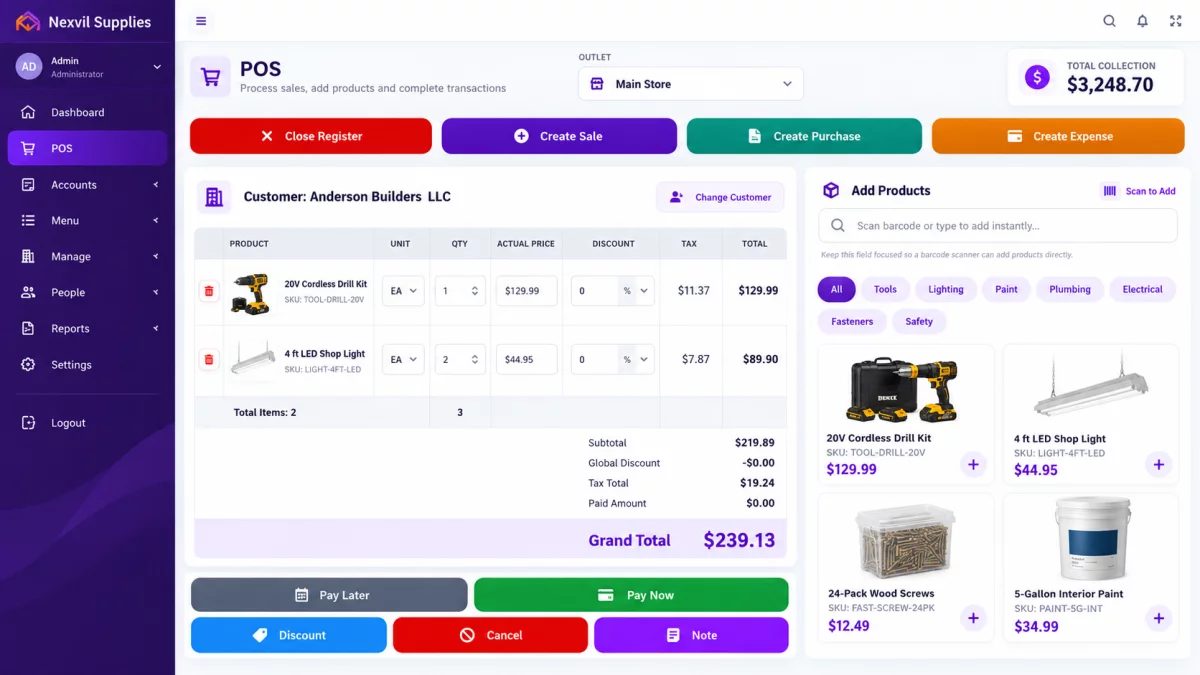
- Checkout: barcode scanning, multiple payment methods, receipts and PDF invoices by email, plus register open/close with cash reconciliation.
- Inventory: variants, multi-unit pricing and barcodes, batch and expiry tracking with FIFO, FEFO or LIFO, and low-stock alerts.
- Growth: multi-outlet management with stock transfers, roles and permissions, and more than 20 reports, which can be emailed to you on a schedule.
- AI insights: on the Gold plan and above, your dashboard explains your sales and stock in plain language.
It is available in English, French, Arabic, Malagasy and Spanish. See all features or compare plans from $20 per month.
Frequently asked questions
What is the difference between POS software and a POS system?
POS software is the program that records sales, payments and stock. A POS system is the complete setup at the counter: the software plus hardware such as a computer, barcode scanner, receipt printer and cash drawer. You choose the software first, then the hardware that works with it.
Do I need internet to use cloud POS software?
Yes. Cloud POS runs online, so it needs an internet connection to record sales and sync stock. A stable connection is usually enough, because each sale uses very little data. In areas with frequent outages, a mobile data hotspot as backup keeps your checkout working.
How much does POS software cost?
Cloud POS is usually a monthly subscription, and the price depends on the number of products, users and stores. On-premise software often has a large upfront licence fee instead. Pyramid POS plans range from $20 to $200 per month, with no setup fees and a 14-day free trial.
Can POS software manage inventory?
Yes. Most systems deduct stock with every sale and records deliveries, adjustments and transfers. More complete systems add low-stock alerts, product variants, multi-unit pricing, and batch and expiry tracking, so you know exactly what to reorder and what to sell first.
Is a POS system only for big stores?
No. Small shops often benefit the most, because the owner gets clear numbers without hiring an accountant to work them out. A single computer, a barcode scanner and an affordable cloud subscription are enough to start, and you can add users and outlets as you grow.
Is my data safe in a cloud POS?
Reputable providers store data on secure servers, encrypt the connection between your shop and the server, and back up data daily. Ask any provider where your data is hosted, how often it is backed up and who can access it. Strong passwords and user permissions protect it on your side.
Getting started with POS software
POS software turns every sale into useful information: accurate stock, balanced cash and clear reports. Start by listing how you sell, whether by box and piece, with expiry dates, on credit or across branches. Then choose software that handles those needs and test it with your own products. The best way to see what POS software can do for your shop is to try it. Start your 14-day free trial of Pyramid POS. No credit card required.
Try Pyramid POS free for 14 days
All core features included. No credit card required.
Start 14-Day Free Trial